
Create a slot demo with Pixi Reels.
Start with a small browser slot: five reels, three visible symbols per reel and one complete round. Use pixi-reels for the reel presentation, then optionally add Open Slot UI for the controls. Use a clear fruit-and-energy interface for the first build, then explore the illustrated character direction below. Build it as a play-money prototype with your coding agent, then share it for feedback.
On this page
1. Start with a working PixiJS scene.
Use Node.js 20 or newer and a PixiJS v8 project. If you are starting from an empty folder, ask your coding agent to create a small TypeScript browser app first. Run it locally and confirm that a canvas is visible before adding the reels.
Install the reel engine and its dependencies in that project. Follow the linked setup guide for the versions you use; these are third-party libraries, not a Playtagon game engine.
pixi-reels · Getting startedpnpm add pixi-reels pixi.js gsap2. Build one complete spin.
Begin with a handful of original placeholder symbols and a single spin button. Give each symbol a stable ID so the game result and the visuals use the same vocabulary.
Ask your agent to read the current first-reelset guide before implementing. Build the grid with ReelSetBuilder, register the symbol textures and connect it to the Pixi application ticker. Keep the first version small enough to inspect every step.
pixi-reels · Your first reelsetBuild a browser slot demo using PixiJS v8, TypeScript and pixi-reels in this project. Read the current official getting-started and first-reelset documentation before choosing APIs.
Scope: five reels, three visible cells each, five original placeholder symbols, one Spin button and play credits. Start with a simple fixed stake and one clearly explained winning rule. Keep the round model separate from reel animation and UI.
Implement a complete idle → spinning → result → idle loop. The game chooses the result grid; the reels present that exact result. Prevent a second round while one is running. Make a reset button that restores the demo credits.
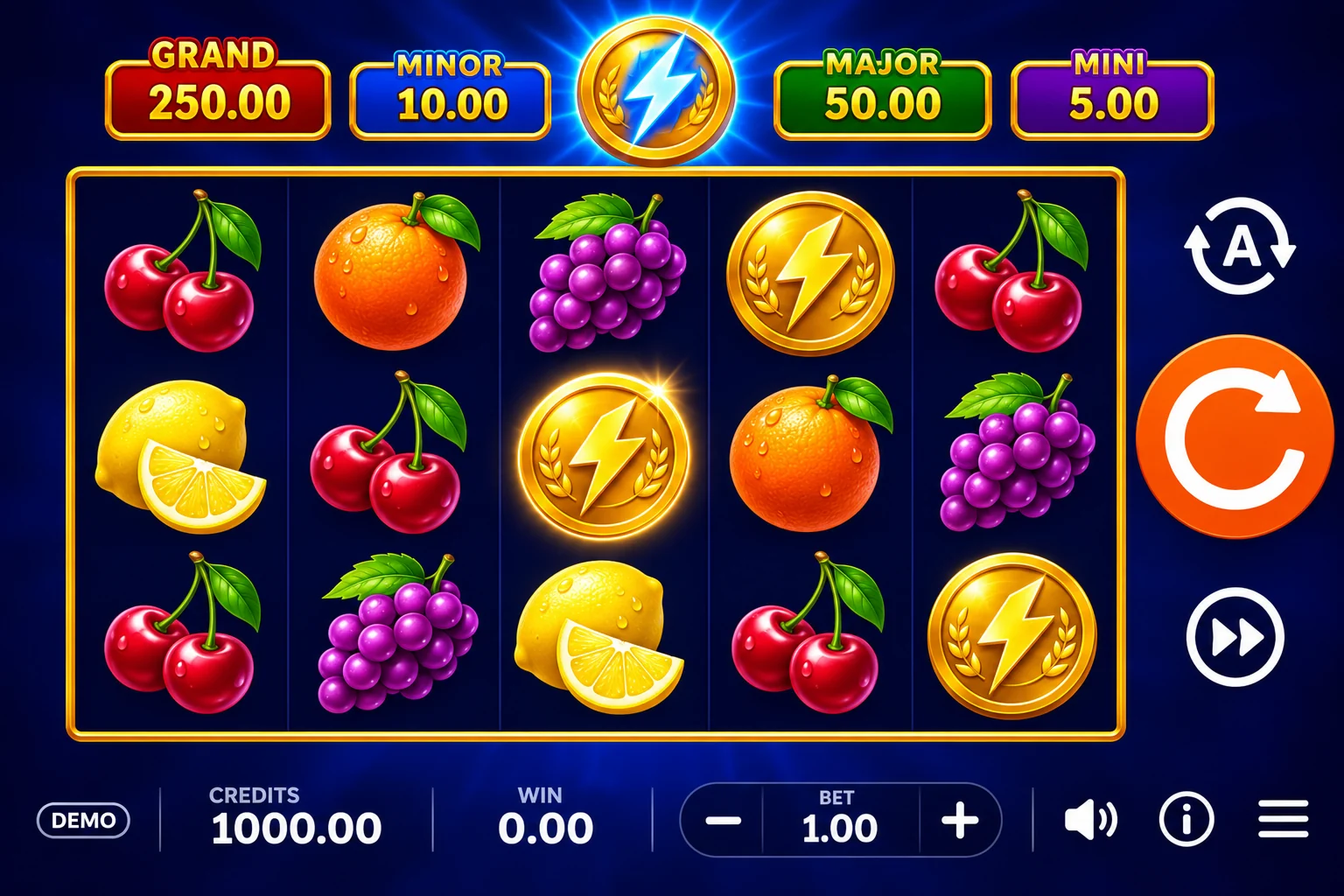
Art direction for the finished demo: a flat, front-on browser game screen. Use a midnight-blue background, a thin gold reel frame and five symbol families: cherries, oranges, lemons, grapes and gold energy coins. Put a large orange spin control beside the reels and credit, stake and win readouts below. Start with simple placeholders; keep the art replaceable without changing the round model.
Use a portrait-friendly layout from 320px wide and a centered desktop layout. Build the first complete spin before adding effects. Run it locally, check winning and non-winning rounds, and tell me how to open it.3. Keep the result separate from the animation.
Your game owns the round: selected stake, result, win calculation and credit balance. Treat the reel engine as the presentation of that result. A local demo can use a small outcome generator and repeatable test fixtures.
In the documented result-driven flow, start the spin, provide the landing grid with setResult, then wait for the spin promise. Awaiting spin alone can leave the reels waiting for an outcome. Follow the current column format from the first-reelset guide rather than assuming a plain nested string array.
Write down the winning rule you implemented and use the same rule in the displayed paytable. Show the final balance once the round settles. This tutorial does not supply a game-math model or an RTP figure.
pixi-reels · Your first reelset- Keep fixtures for no win, a small win and the largest win your demo supports.
- Charge the stake once and apply the win once, even after repeated taps.
- Restore controls if a round fails and provide a useful retry state.
- Keep demo credits and reset behavior clear to the player.
4. Optionally add Open Slot UI.
Keep your own controls if they are enough for the prototype. For a reusable slot HUD, Open Slot UI provides balance, bet and win readouts, a spin control and supporting panels. Choose its Pixi binding for a canvas HUD, or its DOM binding if your game already has an HTML/CSS interface.
For the Pixi binding, install the packages below. The repository shows mountHud for attaching the HUD to your Pixi application. Subscribe to spinRequested in your round controller, mark the control busy while the round runs, then update the balance and win and restore the idle state.
Reserve room for the HUD when sizing the reels. Start with just the controls your game implements, and theme the bar to match your symbols and background.
Open Slot UI · Repository and PixiJS setuppnpm add @open-slot-ui/core @open-slot-ui/pixiAdd an optional Open Slot UI HUD to the existing PixiJS slot demo. Read https://github.com/schmooky/open-slot-ui and its USAGE.md first. Use the Pixi binding and the documented event/command contract.
Connect the spin request to the existing round controller. Keep outcome generation and credit accounting in the game. Show balance, stake and last win; block duplicate round requests and restore the controls on success or error. Use play credits and a clear demo label.
Keep unsupported features off. Reserve space so the bar never covers the bottom row of symbols. Match the current art direction and check narrow portrait, tablet and desktop layouts.5. Choose a clear visual direction.
Energy Coins: Hold and Win by Playson is the reference for the fruit-and-energy direction: a blue reel field, gold framing, large glossy fruit and coin symbols, a prominent spin button and a compact bottom HUD.
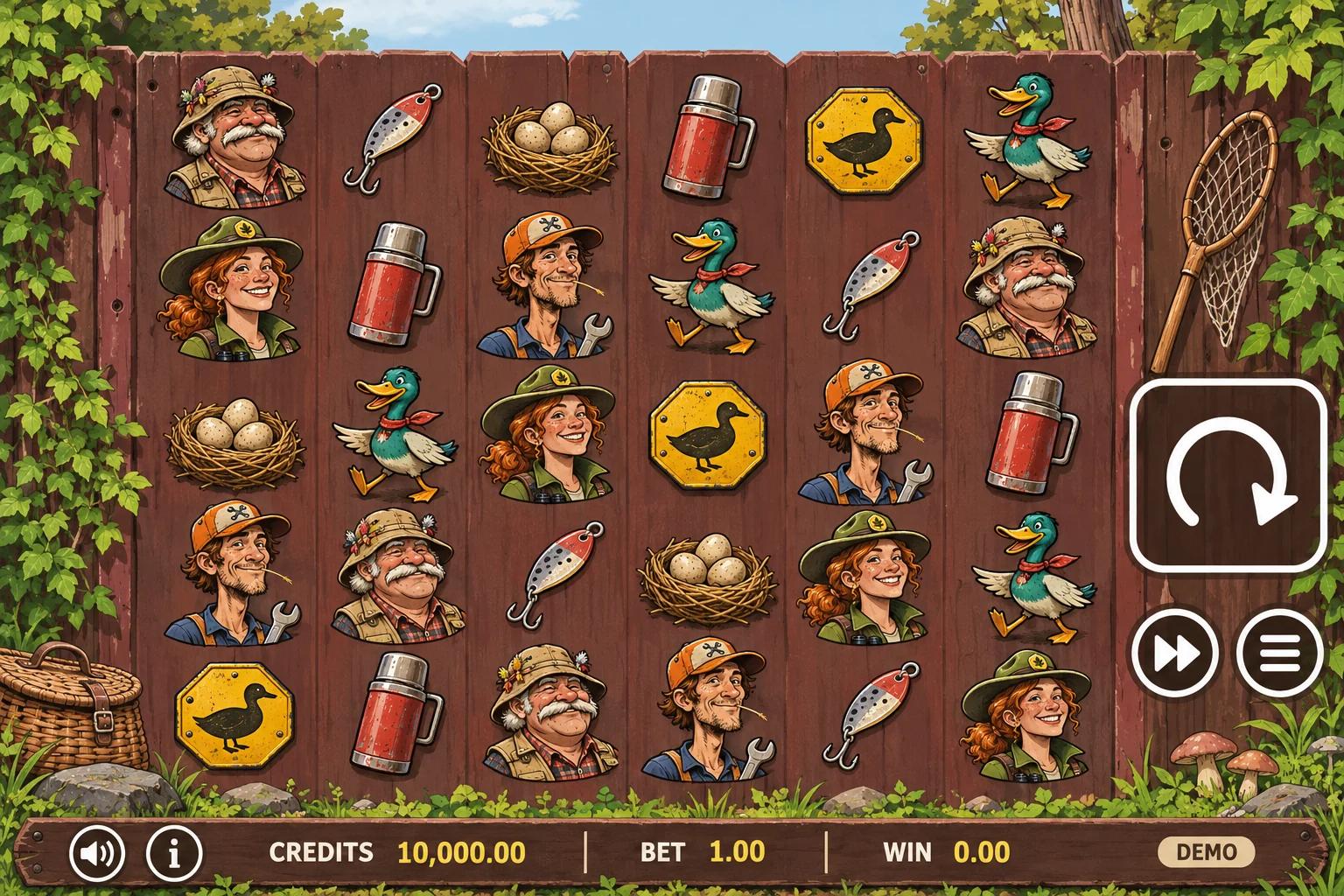
Duck Hunters by Nolimit City is the reference for the illustrated direction: a dense character-and-object symbol field, a flat wooden backdrop, foliage and large outlined controls. Keep this as a separate art direction with its own cast and palette.
The first build in this guide stays five reels by three rows. The illustrated six-by-five concept below is a layout study for a later variation. If you change the grid, update the result data, winning rule and tests together.
Compose the whole screen as game UI: reel field, controls and readouts. Keep decorative art outside the interaction area, make symbol silhouettes distinct and check the final layout on a phone. Start with textures; add sprite or Spine animation once the round is reliable.
Ask a playtester to spin several rounds without an explanation. Watch whether they notice the stake, understand the result and can find the rules. Bring one specific observation back to your agent.
- Test fast repeated taps, reset, resizing and returning from a background tab.
- Check that the landed symbols match the round result and the displayed win.
- Keep controls reachable on a phone without covering the reels.
- Offer sound control and make the game readable with audio muted.
Polish the existing five-by-three demo in the fruit-and-energy direction. Keep the working round controller and winning rule.

Make a flat, front-on browser game interface with deep blue reels, a thin gold frame, glossy fruit and gold energy-coin symbols. Keep the spin button prominent beside the reels, and put credit, stake and last-win readouts below.

Use the existing symbol IDs and original textures. Reserve a clear area for Open Slot UI. Keep unsupported controls off. Check mouse and portrait touch controls, then add a short landing bounce and restrained win highlighting.

If we later choose the illustrated character direction, plan it as a separate skin. A move to six-by-five must also update result dimensions, the winning rule and tests.6. Host the playable and share it on Playtagon.
Create a production browser build, host it at a public HTTPS URL and test that exact URL in a fresh browser session. Check that textures, fonts and audio load outside your local environment.
Submit a Playable game on Playtagon. Choose Casino as the main genre and add tags such as slots and pixi. Upload your own cover and screenshots, include the demo URL and describe what you want people to test: spin pacing, symbol readability or the portrait controls.
Save a private draft with Free. Casino projects require active Pro access to submit for review and publish. The publishing guide below covers the current form, image limits and review process.
Official resources
Use these resources for tool setup, APIs and model availability. The prompts above are original Playtagon starting briefs for a small, step-by-step project.
- pixi-reels · Getting started
- pixi-reels · Your first reelset
- pixi-reels · Source repository
- Open Slot UI · Repository and PixiJS setup
- Open Slot UI · Integration walkthrough
- Visual reference · Duck Hunters by Nolimit City
- Visual reference · Energy Coins: Hold and Win by Playson
Sources checked 21 November 2026.
Ready for a first playtest?
Learn how to package your ZIP and host it on Playtagon.
Publish your demo